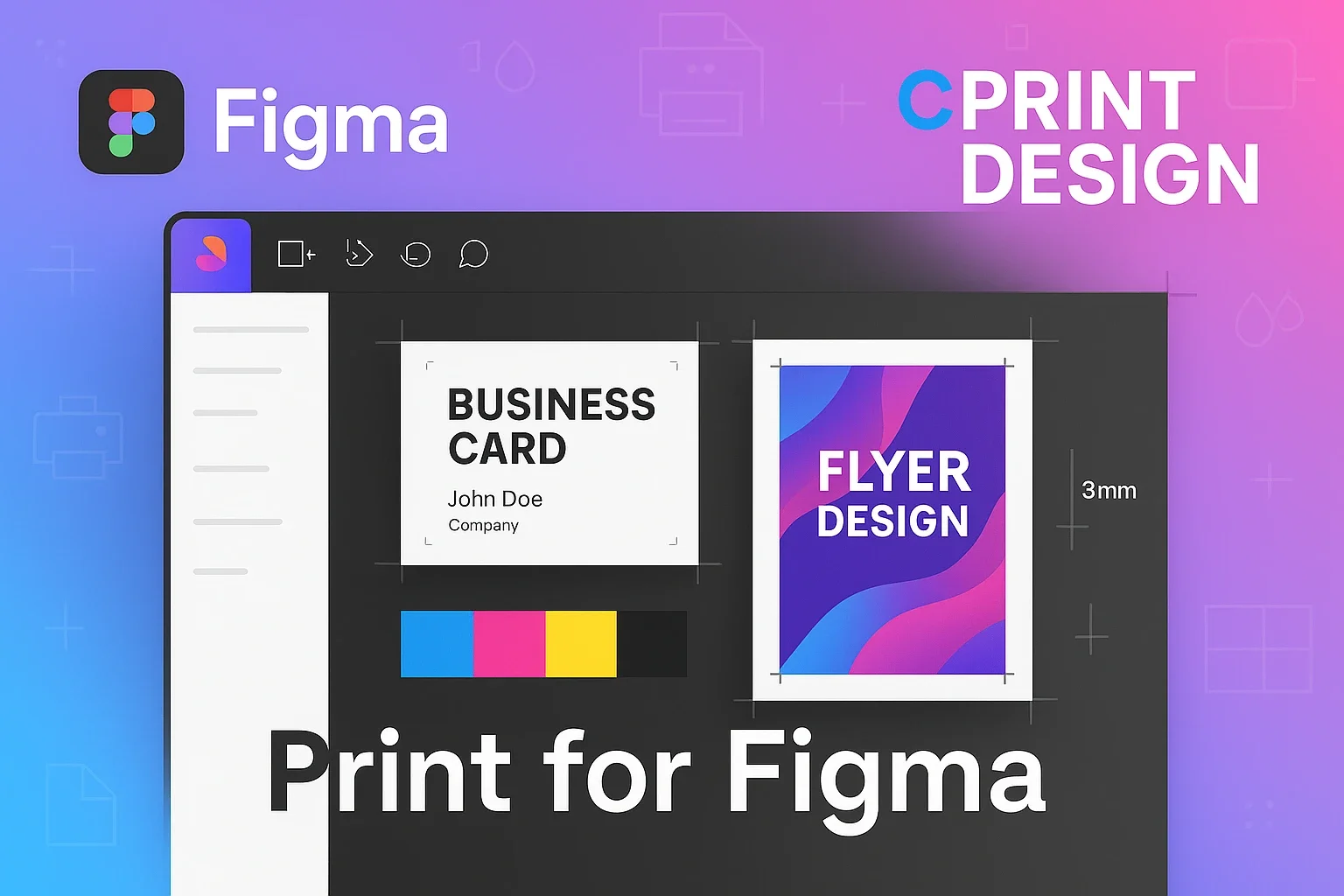
Figma Now Supports Print Design! CMYK, Bleed & Crop Marks with Print for Figma Plugin
Popular web design tool Figma now handles professional print design with the Print for Figma plugin. Learn about CMYK conversion, bleed, crop marks and other essential print features.
Do you use Figma? I’m absolutely hooked on it. It’s an essential tool for UI and web design. But did you know that Figma can also be used for print design? I was surprised when I first heard about it too. After all, Figma only handles RGB, while print requires CMYK.
However, Figma is rapidly gaining prominence in the print design field. The driving force behind this is the “Print for Figma” plugin, with over 200,000 all-time users as of July 202617. Let’s explore how this plugin enables print design in Figma.
Note that similarly named plugins (such as Printery) exist. This article covers the original plugin by Printability (developer: Ben Katz)7.
Core Features of the Print for Figma Plugin
First, let’s organize what this plugin can do.
Color Space Conversion
The most significant feature is the ability to export in RGB, CMYK, and grayscale. While Figma fundamentally works in RGB, it can convert to CMYK for print. However, be aware that colors may shift slightly during conversion.
Print Specifications Setup
- Standard Print Sizes: Standard preset sizes including A4 are available
- Bleed: In Japan, 3mm bleed is standard, which can be easily configured2
- Crop Marks: Marks indicating cutting positions can be automatically added
- DPI Management: Supports high-resolution output at 300 DPI required for print
What I find particularly convenient is the ability to configure multiple pages at once. You can customize page count, margins, bleed, and crop marks all together.
How to Use It and Examples in Japan
Here’s the basic workflow:
- From the Print for Figma plugin’s Create tab, select ISO size (like A4)
- Set margins (inner safe area) - optional
- Set bleed and crop marks (3mm bleed is standard in Japan)
- Always set crop marks to “Enabled”
- Select high-resolution output at 300 DPI when exporting3
If you submit files to a Japanese printing company, be aware that PDFs made in Figma are handled differently from company to company. Vanfu Online Shop, for example, says Figma PDFs are stopped as defective at its data-check stage, and asks customers to note “PDF created in Figma” in the remarks field when submitting. The company adds that some printing companies judge such files to be fine2. When exporting a print PDF from Illustrator, using the PDF/X-1a preset is a commonly used method4. Check your printer’s requirements in advance.
Examples from Japanese Companies
Interestingly, companies like Timers in Japan are doing all their design work in Figma. They create calendars, brochures, and even business cards - all DTP data in Figma5. Pretty impressive, isn’t it?
Pricing and Implementation Benefits
Pricing Structure
As of July 2026, pricing consists of three plans7:
- Starter (Free): Core features including CMYK export, limited to 5 creations per week
- Pro: $9.60/month billed annually ($115.20/year). Removes the creation limit
- Teams: $16/seat/month billed annually, for team-wide billing
CMYK export itself is available even on the free Starter plan, but with the 5-creations-per-week cap, plan on a paid tier if you produce print materials regularly7.
Comparison with Traditional DTP Software
Compared to Adobe InDesign, Figma’s interface is simple with a lower learning curve. From my experience, I particularly appreciate:
- Real-time Collaboration: Team work is dramatically easier
- Cloud-based: Accessible from anywhere
- Version Control: Automatic history saving
- Prototyping: Interactive previews possible even for print materials
Important Considerations and Limitations
Of course, it’s not a perfect tool. There are several points to be aware of:
Understanding Resolution
You may hear that “Figma is fixed at 72dpi so it’s unsuitable for print” — but this is a misconception that Printability, the plugin’s developer, explicitly debunks on its official blog8. Figma’s 72 PPI is merely a baseline for physical-size conversion; raising the export scale (2x, 4x, etc.) yields the 300 DPI-equivalent high-resolution output that print requires8. That said, exporting at 1x without thinking about resolution will produce low-resolution files, so always check your export settings.
Color Shifts in CMYK Conversion
Colors inevitably change when converting from RGB to CMYK. Particularly vibrant colors may not be reproducible in CMYK, making test prints essential2.
Layer Management Challenges
When using Print for Figma, the Crop Marks layer can sometimes get buried under design elements. You must ensure the Crop Marks layer is moved to the top before PDF output3.
Future Outlook and Possibilities
Figma’s entry into print design is still developing. However, I believe the potential is significant. I particularly expect adoption in:
- Startups and Small Teams: No need to juggle multiple tools, leading to cost savings
- Web to Print: Unified branding across web design and print materials
- Prototyping: Quick prototyping of print designs
The plugin features are also evolving daily. In the future, we can expect more advanced color management and support for Japanese printing standards. Beyond plugins, Figma’s ecosystem keeps expanding through AI integrations as well — see Figma’s official Dev Mode MCP server and design-to-code automation with Figma Context MCP.
It feels like the design world has become more accessible.
Sources
- Print for Figma | CMYK, Bleed, Crop Marks, DPI - Figma Community Official Page
- Creating Print Data with Figma - Vanfu Online Shop
- How to Create Business Cards in Figma: Print Settings to CMYK - Igawa Memo
- Can Free Software Be Used for DTP? Figma Edition Part 2 - Surusuru
- From UI to Brochures! Why and How We Create All DTP Data in Figma - Timers Designer Team
- Creating Simple Print Materials Easily with Figma! - Up Garage Tech Blog
- Print for Figma | The #1 Figma Plugin for Print Design - Printability official product page (verified 2026-07-16)
- How to get 300 DPI in Figma - Printability official blog
Was this article helpful?
Thank you!
Received. Thank you!